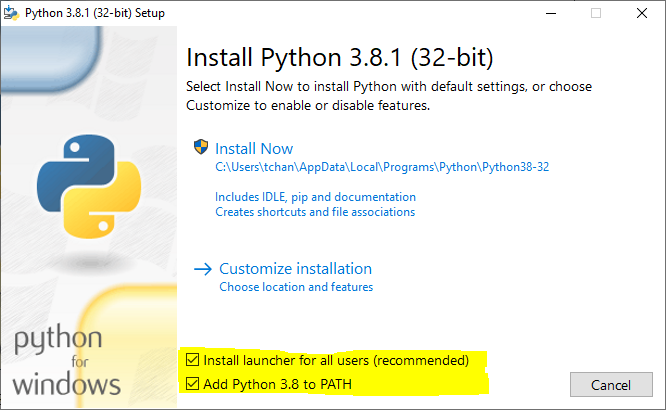
- Download and install the latest Python version for Windows
python.org
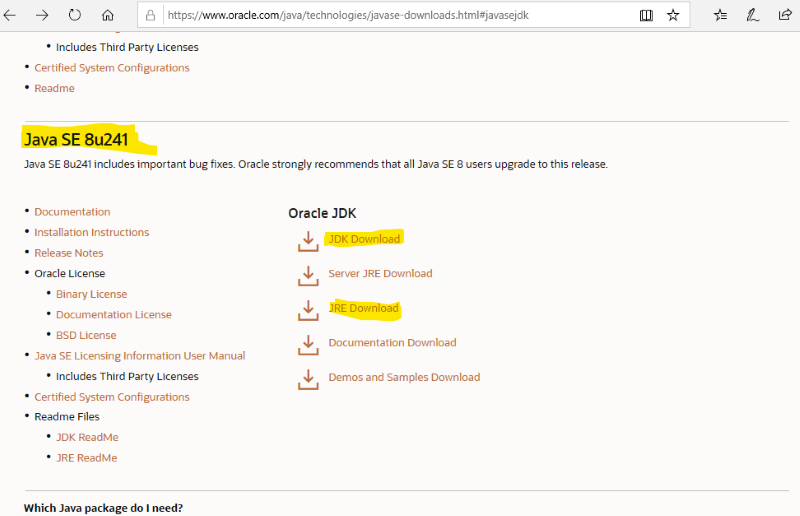
- Create an Oracle account to install Java SE for Windows SE 8 JRE and JDK
- Eclipse C/C++ version
Get Eclipse IDE 2019-12

- Install PyDev into Eclipse:
- Start up Eclipse
- Perform "Check for Update" under help menu (optional)
- Under "Install New Software", enter "http://www.pydev.org/updates" in "Work with:" dialog box, and check the PyDev item

- Check next and follow the instruction to complete the installation of PyDev
- To configure Pydev
- Click Window -> Preferences.
- Go to PyDev -> Interpreters -> Python Interpreter
- Click the button "Config first in PATH"
- Click Apply and OK.

- To test the Eclipse Pydev IDE
- Go to File -> New -> Project.
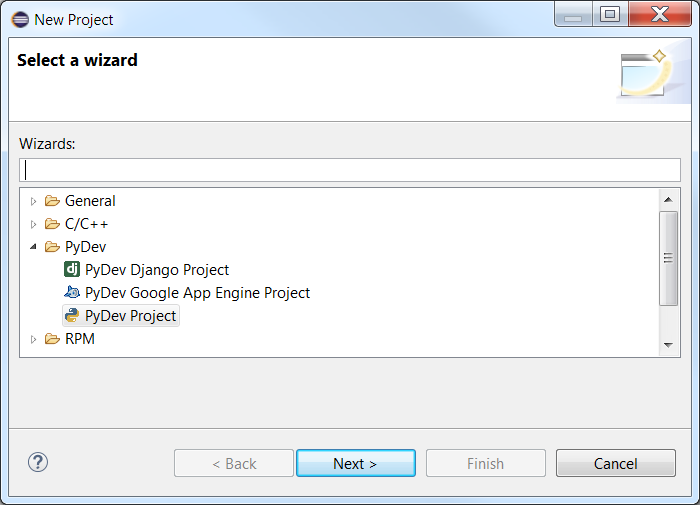
- Go to File -> New -> Project.
- Select PyDev Project, then click Next. On the next page, type "week1lab" or name of your choice in the Project name field. Creat a working directory or use the default one. Select Grammar version (Same as interpreter) and Interpreter (Default -- currently: Python) and click Finish.
 You will see a Pydev perspective opened inside the workbench with the new PyDev project in the Package Explorer.
- Pydev Console
- Click the new console icon and select "Pydev Console"

- From the next dialog window, select Python Console and click OK.
- Simple Canvas drawing
- To draw a simple logo

- In PyDev Console, enter the followings:
from tkinter import Tk, Canvas
frame=Tk()
canvas=Canvas(bg='black',height=250,width=300)
coord=(100, 100, 200, 200)
canvas.create_arc(coord,start=0,extent=90,fill='white')
canvas.create_arc(coord,start=90,extent=90,fill='blue')
canvas.create_arc(coord,start=180,extent=90,fill='white')
canvas.create_arc(coord,start=270,extent=90,fill='blue')
canvas.pack()
frame.mainloop()
- To draw a simple logo
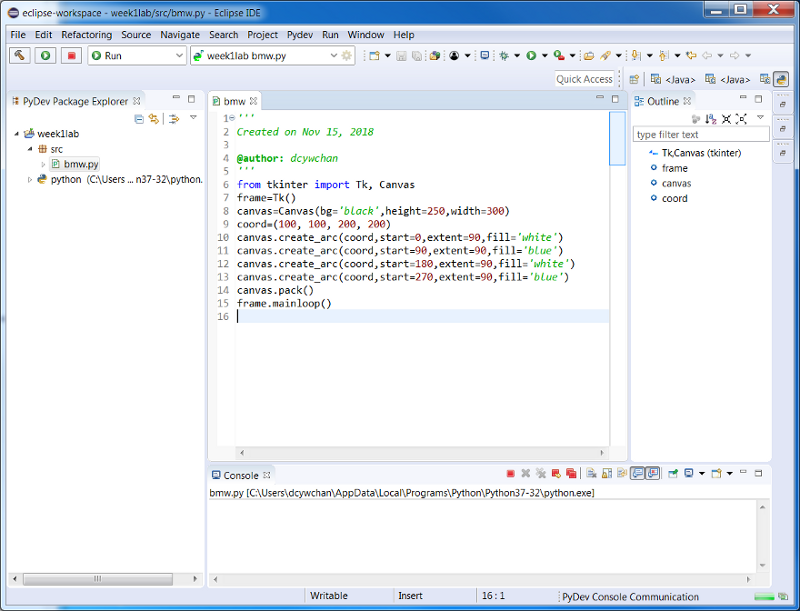
- Creating a new Pydev Module bmw
In the Package Explorer view, select the the current working pydev project i.e. week1lab and click the New > Source Folder... to create a source folder "src", click the New > Pydev Module... in the toolbar. In the Package and Name field, select src and type bmw. Click Finish and Select <empty> from the Template menu.
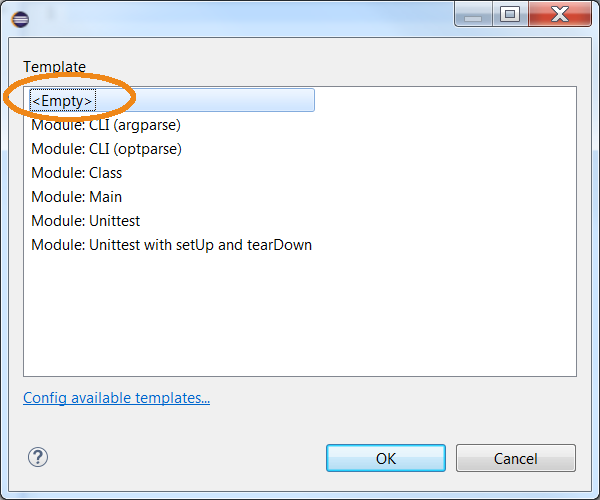 bmw.py is opened in the editor which contains the default header comments.
Finish the program by copy the code from above. Save and run the module to see your output.
bmw.py is opened in the editor which contains the default header comments.
Finish the program by copy the code from above. Save and run the module to see your output.
- Go to Window -> Show View -> Console.
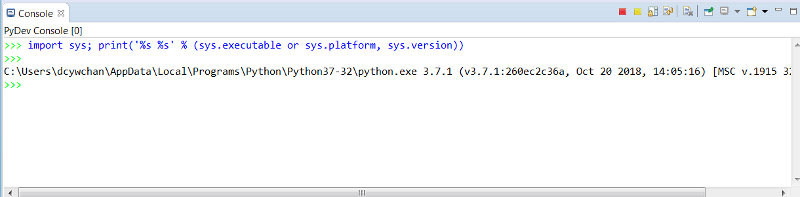
- Click the new console icon and select "Pydev Console"
- Create a Google account to run the following code cell from Google colab

- Download "simpleBarChart.py" to run on your PC. Does it work as intended and why?
- Install matplotlib and test run "simpleBarChart.py"
- start command prompt in Window
- type "pip install matplotlib"
- type "python simpleBarChart.py"
- Download assignment from Canvas, test run "grade.py" using the two data files provided.
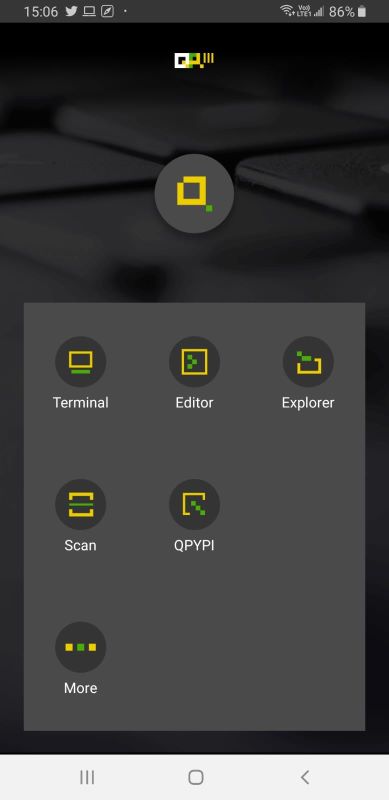
- Download and install QPython OL from Google Play.
- Run the Terminal App and try some Python codes shown in the following screen.
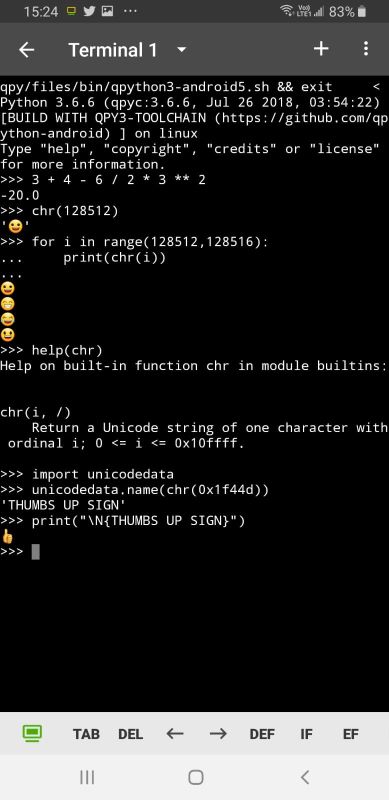
- Now try the same functions using Eclipse or Jupyter Notebook. Does it work as intended and why?
- What is the value of x after executing each of the following:
Type these statements in python console to check your answers.a. x = 3 + 4 - 6 / 2 * 3 b. x = 12 % 5 c. y = 4 d. x = 3 x = y << 2 y = ++x + 4 // x e. y = 7 f. x = 5 x = 2 * y < y x *= 3**x - Given the following program, what is the value, id, and type of variables after executing each of the following statements:
Use print() or echo, id(), and type() functions in python console to check your answers.from tkinter import Tk, Canvas frame=Tk() canvas=Canvas(bg='black',height=250,width=300) coord=(100, 100, 200, 200) canvas.create_arc(coord,start=0,extent=90,fill='white') canvas.pack() frame.mainloop() - The Canvas widget from tkinter module support more than canvas.create_arc() methods to draw arc or pieslice. Other methods include create_line(),create_oval(),create_polygon(), create_rectangle(), and create_text(). Modify program in previous question to draw a rectangle, print your name with a line drawn underneath.
- Given the following algorithm
Algorithm PRIME. Given a positive integer NUM, this algorithm determine whether or not the numbers is prime. LOOP is an integer loop variable
1. input the number
   Read(NUM)

2. determine that the NUM is prime or has divisors other than 1
   2.1 determine if number is divisible by 2
       If NUM = 2
       Then NUM is a prime number
       Else If NUM is even
            Then NUM is not a prime number and halt
            Else 2.11  determine if (NUM divisible by odd integers >= 3 and  <=  (square root of NUM))
                       For LOOP := 3 to sqrt(NUM) by 2
                       Do If (NUM mod LOOP) = 0
                          Then NUM is not a prime number and halt

3. if we get here, print a message that NUM is a prime number
   Write(NUM,"is a prime number");

4. finished
   Halt
Write a Python program to determine whether a number is a prime number. - Second order algebraic equations are very commonly used in describing phenomena in the physical world and in engineering. They have the following form: aX + bX + c = 0; where a, b, and c are known values and X is the unknown. The value of X can be found by the so called binomial equation which states that
X = (-b + sqrt(b*b- 4*a*c)) / (2*a) ,
and
X = (-b - sqrt(b*b- 4*a*c)) / (2*a)Thus X can be found if a, b, and c are known. For any set of values for a, b, and c there are two possible answers for X.
Write a Python program to solve the binomial equation. Prompt the user to enter the values a, b, and c. Use only 2 decimal places for all values.
Your output should be formatted as the example below:
When a = 1.00, b = 0.00, and c = -1.00: X = 1.00 or -1.00
Run your program with the following 3 sets of sample data:
1) 1.0 0.0 -1.0
Check your outputs by plotting the equation using Google search. e.g.
2) 1.0 1.0 -12.0
3) 2.0 3.0 -4.0
4) 0.0 1.0 -1.0
5) 2.0 3.0 4.0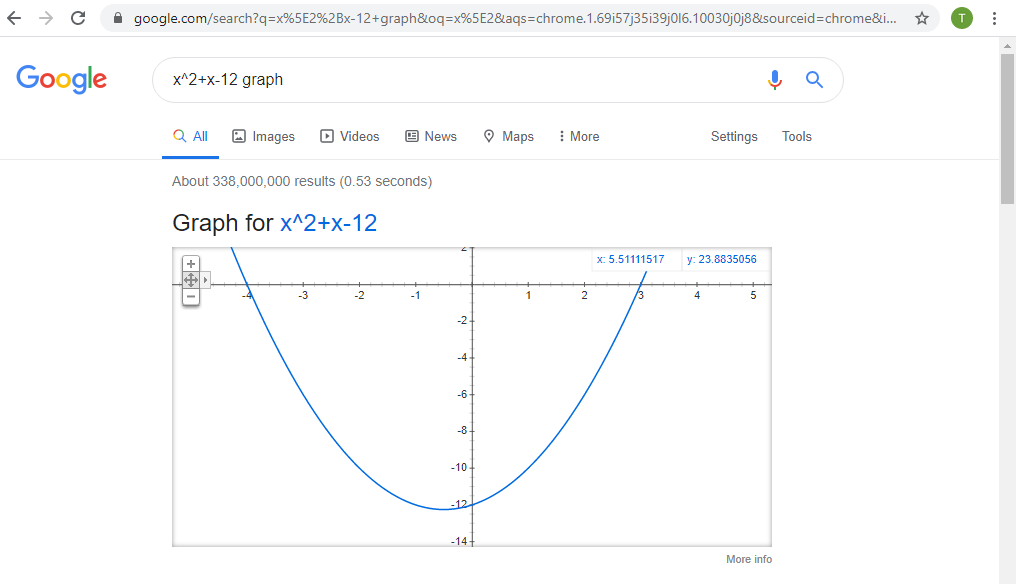 Does the program work as intended and why?